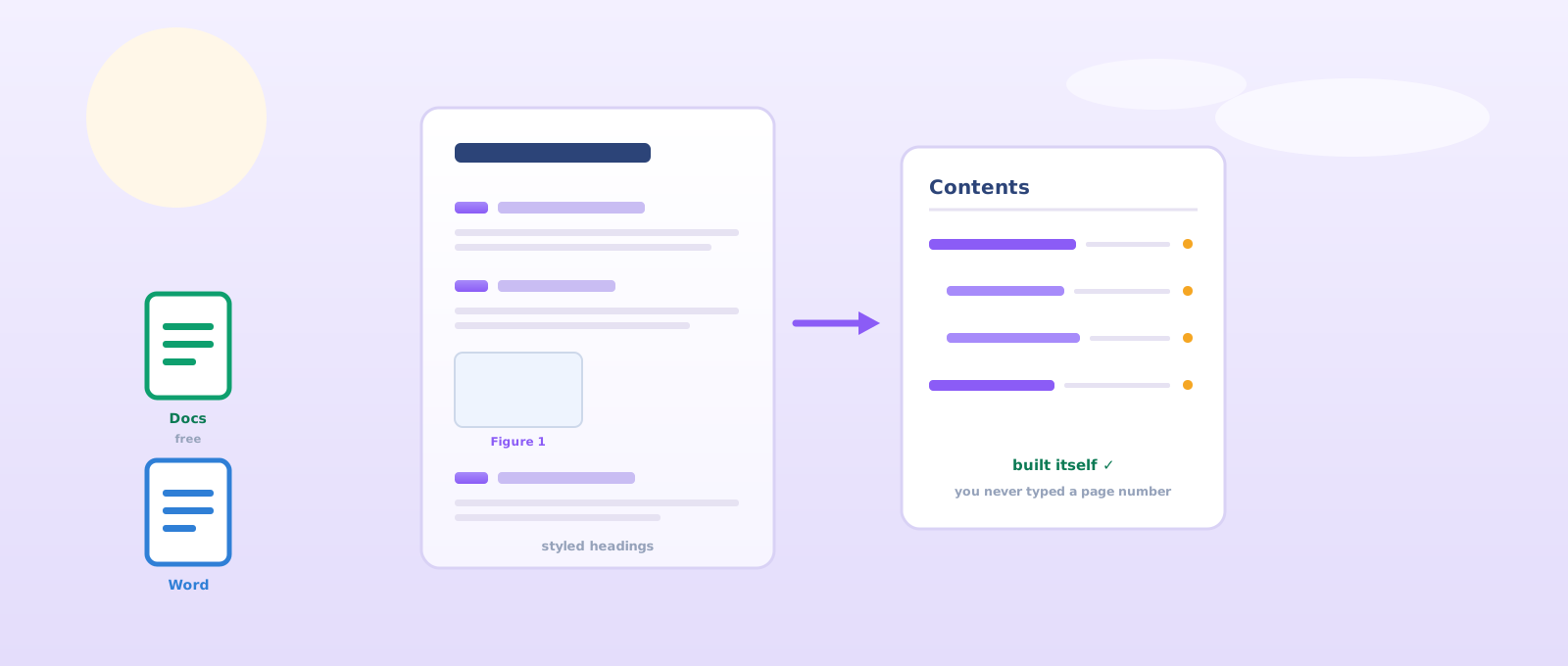
Last week you became builders. This week you become the student whose work looks professional before a single word is read. Two documents can carry identical content and score differently — because one respects the marker's eyes and one fights them. Everything in this class is a tool that does boring work for you: tables of contents that write themselves, page numbers that appear everywhere at once, references that format themselves. Ten seconds to learn, marks for years. Commandment 3 is in force: thou shalt never submit an unformatted document.
1App show-and-tell — 60 seconds each
You shipped two things this week. Demo the one you're proudest of: what it does, the best prompt you used, and one thing that went wrong and how you fixed it.
1. "My app is called … and it does …" 2. "The prompt that unlocked it was …" 3. "It broke when … and I fixed it by …" — that third line is the most important sentence in this camp. Builders talk about their bugs.
A full 3D arena shooter — real 3D graphics, particle effects, waves that get harder, touch controls. The most ambitious thing anyone submitted, and proof that "I can't do 3D" was never true.
Retro arcade done properly: a canvas game loop, a difficulty ramp, sound effects, and a real restart. Completely self-contained — no internet needed, which is exactly how a game should ship.
The only one built phone-first — real touch controls, saves your high score, and it actually plays properly on a small screen. Most people forget the phone entirely. This one didn't.
Not a game — a tool that does a job: flip-card revision with your own decks and a score. Everyone else built something to play with. This one built something to study with. Respect.
2Anatomy of a distinction write-up
A marker forms a first impression in ten seconds, before reading a full sentence. Here's what those ten seconds scan for.
| Element | What "professional" looks like | The tool that does it for you |
|---|---|---|
| Title page | Alone on page 1 — title, name, school, date | Page break (never Enter-Enter-Enter) |
| Table of contents | Generated, with page numbers that are actually right | Heading styles + Insert TOC |
| Headings | Consistent sizes and spacing, numbered levels | Styles (Heading 1 / 2 / 3) |
| Page numbers | On every page, automatically | Insert → Page numbers |
| Figures | Every image captioned: "Figure 1: …" | Captions (+ table of figures in Word) |
| References | Formatted list, matching in-text citations | Citations tool |


For my project I investigated which brand of battery lasts the longest in a standard torchlight. Batteries are one of the most important inventions of the modern age. I tested three brands over five days and recorded the results.
According to a website I found, alkaline batteries last up to 40% longer. This informed my choice of brands for the experiment.
The results were recorded every six hours Brand A 41 hrs Brand B 36 hrs and the pattern was clear early.
3Heading styles → a table of contents that writes itself
The single highest-value trick in this class. Style your headings once, and the document starts working for you.
A heading style isn't about looks — it's a label that tells the document "this is a section title". Once your sections are labelled, the app can build (and rebuild) your table of contents in one click, with page numbers that are always right.
Step 1 — style the headings
- Click anywhere on the line you want to turn into a heading.
- Open the style dropdown in the toolbar — the box that says Normal text.
- Choose Heading 1 for a main section, Heading 2 for a subsection inside it.
- Hate the look? Restyle one line, then reopen the dropdown → hover Heading 1 → Update 'Heading 1' to match. Every H1 changes at once.
- Click anywhere on the line you want to turn into a heading.
- Go to the Home ribbon and find the Styles gallery.
- Click Heading 1 for a main section, Heading 2 for a subsection.
- To change the look everywhere: restyle one line, then right-click Heading 1 in the gallery → Update Heading 1 to Match Selection.
Step 2 — let it build the contents page
- Put your cursor where the contents should sit — usually right after the title page.
- Insert → Table of contents.
- Pick the style: with page numbers, or with blue links.
- Edited the document since? Click the contents, then hit the refresh ⟳ icon that appears beside it.
- Put your cursor where the contents should sit.
- Go to the References ribbon → Table of Contents.
- Choose Automatic Table 1.
- Edited the document since? Click the table → Update Table → Update entire table.
Table of Contents
Making text big and bold by hand is not a heading — it just looks like one. The TOC will ignore it, navigation will ignore it, and future-you will suffer. If the styles box doesn't say "Heading", it isn't one.
4Page breaks & page numbers — the mark-savers nobody teaches
The difference between a document that holds its shape and one that collapses the moment you edit a paragraph.
The sin: pressing Enter fifteen times to push a chapter onto a new page. It works — until you add one sentence anywhere above, and every "new page" in the document slides out of position.
The fix: a page break — a hard wall that says "next page starts here, forever".
Insert a page break
- Put your cursor immediately before the heading that must start a new page.
- Insert → Break → Page break.
- Or just press Ctrl+Enter (⌘+Enter on Mac).
- Put your cursor immediately before the heading.
- Insert ribbon → Page Break. (Or Layout → Breaks → Page.)
- Or press Ctrl+Enter.
- Want to see your breaks? Home → the ¶ button shows every hidden mark.
Add page numbers (and keep the title page clean)
- Insert → Page numbers.
- Choose the option that skips the first page — that's your title page handled.
- Bottom-right is the safe, standard position.
- Insert → Page Number → Bottom of Page.
- Double-click into the footer, then tick Different First Page.
- Press Esc to close the footer.
Ctrl+Enter = new page. You will use it in every project you ever write, from today until forever. That's the whole lesson. Put it in your muscle memory next to WASD.
5Label your figures — and let Word list them for you
Every picture, chart or diagram in a write-up gets a name and a number. Markers reference them; so must you.
The rule: under every image goes a caption — "Figure 1: Battery test setup" — and your text refers to it by name: "as shown in Figure 1…". Numbered figures turn a pile of pictures into evidence.
- Insert the image, click it, and set the wrapping to In line.
- On the line beneath it type Figure 1 — what it shows, centre it, and make it small.
- Be consistent: same wording, same style, every time.
- Docs has no automatic caption tool. For a table of figures, either list them by hand once at the end, or add the free Extensions → Add-ons → "Cross Reference" add-on.
- Click the image → References ribbon → Insert Caption.
- Label = Figure, position = below. Type the description — Word supplies the number.
- Insert a new picture earlier later on? Every figure renumbers itself.
- At the end: References → Insert Table of Figures. A contents page just for your images.
Next week you'll generate figures with AI, and in Week 5 Mr Kershawn turns your data into charts — every one of them lands in your write-up captioned. This habit starts today.
6References that build themselves
Commandment 6: give credit where credit is due. The tools make it nearly effortless — so "I forgot" stopped being an excuse years ago.
A reference has four bones: who wrote it, when, what it's called, and where it lives. The citation tools take those four bones and format them perfectly, every time, in whatever style your school asks for (APA is the usual).
- Tools → Citations.
- In the sidebar, set the style your school wants — APA, MLA or Chicago.
- + Add citation source → choose the type (website, book, journal) → fill in the four bones.
- In your text, hover the source → Cite. It drops "(Author, Year)" at your cursor.
- At the end, click Insert bibliography. Formatted, alphabetised, done.
- Go to the References ribbon and set the Style dropdown (APA, MLA…).
- Manage Sources → New… — add each source once, fill the four bones.
- Where you use it in the text: Insert Citation → pick the source.
- At the end: Bibliography → insert. It builds and updates itself.
A citation tool will happily format a rubbish source beautifully. You are still responsible for whether the source is any good — and we sharpen exactly that next week in The AI Arsenal. Never cite something you haven't actually read.
7Three more editing wins
Three habits that separate someone who uses a word processor from someone who drives one. Each takes ten seconds to learn and saves you hours.
Win 1 — Paste without formatting Ctrl+Shift+V
You copy a paragraph from a website, an AI chat or a PDF, paste it in — and it arrives wearing its old clothes: wrong font, wrong size, grey background, a link colour, sometimes an invisible table. Your beautiful document is now a ransom note. This is the single most common way students wreck their own formatting, and it will bite you constantly this camp, because you'll be pasting AI output all the time.
- Copy your text as normal.
- Paste with Ctrl+Shift+V (⌘+Shift+V on Mac) — "paste without formatting".
- The text arrives naked and instantly takes on your document's styles.
- Already pasted a mess? Select it → Format → Clear formatting (Ctrl+\).
- Copy your text as normal.
- Ctrl+Shift+V, or paste then click the little Paste Options clipboard that appears → Keep Text Only.
- Set it permanently: File → Options → Advanced → set pasting from other programs to Keep Text Only.
- Clear a mess: select it → Home → the A◇ "Clear All Formatting" button.
Win 2 — Find & Replace Ctrl+H
Your project called the app "StudyBot" for forty pages. Tonight you renamed it "RevisePal". Do not go hunting page by page. And the same tool cleans up the mess nobody notices: double spaces, straight quotes, "teh".
- Ctrl+H (or Edit → Find and replace).
- Type what to find, then what to replace it with.
- Replace all — every instance, in one click.
- Pro move: find
" "(two spaces) and replace with" "(one). Run it twice. Your document is instantly cleaner.
- Ctrl+H (or Home → Replace).
- Fill in Find and Replace, then Replace All.
- More >> unlocks the power tools — you can even find formatting, not just words.
- Use ^p to find a paragraph mark — that's how you strip out those endless empty lines.
Win 3 — The document outline (your x-ray)
A long document is horrible to move around in — unless you open the outline. It gives you a clickable map down the side, so you jump to any section instantly. And here's the sneaky bit: the outline is a free test of your heading styles. If a section is missing from the outline, it will be missing from your table of contents too. Open it, and you can see whether your structure is real.
- View → Show outline (or Ctrl+Alt+A).
- Your headings appear down the left. Click any one to jump straight there.
- A section missing? It was never styled as a heading. Fix it now, before it's missing from your contents page too.
- View ribbon → tick Navigation Pane.
- Click any heading to jump there — and drag a heading to move that whole section, text and all.
- That drag is a superpower: restructure a 30-page report in seconds without cutting and pasting a single word.
Paste-without-formatting stops you breaking the document. Find & Replace lets you fix it in bulk. The outline lets you see whether it's really built. Together they turn a document from something you fight into something you steer.
Win 4 — The shortcut belt 🛠️
Reaching for the mouse is the slowest thing you do in a document. Wear these on your belt — each one is a reflex by Friday if you use it ten times today:
| Shortcut | What it does | When it saves you |
|---|---|---|
| Ctrl+Z / Ctrl+Y | Undo / redo | Every mistake, un-made. Multiple presses walk further back. |
| Ctrl+Enter | Page break | You learned this in section 4 — it belongs on the belt. |
| Ctrl+→ / ← | Jump a whole word | Stop tapping the arrow key ten times like a woodpecker. |
| Ctrl+Shift+→ | Select a whole word | Grab words like objects instead of dragging pixel by pixel. |
| Ctrl+Backspace | Delete a whole word | Typo'd a word? One chop, gone. |
| Ctrl+Home / End | Top / bottom of the document | No more scrolling through 14 pages of SBA. |
| Ctrl+K | Insert a link | Bibliography URLs, done properly. |
| Ctrl+S | Save, right now | Cloud autosave is great — the reflex is better. |
Win 5 — The Ctrl superpower 🗝️
Here's the secret nobody tells you: holding Ctrl while doing ordinary things upgrades them. Same action, hidden second mode:
| Hold Ctrl and… | What unlocks |
|---|---|
| drag selected text | It copies instead of moving — in Word and Docs. Duplicate a sentence by dragging it. |
| drag a cell in Excel (by its border) | The cell copies to where you drop it instead of moving. |
| drag Excel's fill handle (the little corner square) | Ctrl flips its mind: a number that would copy now counts up 1, 2, 3… and a series that would count now copies. Try both! |
| click a sentence in Word | Selects the whole sentence in one click. |
| scroll the mouse wheel | Zoom — works in Word, Excel, Docs, your browser, nearly everything. |
| press ; in Excel | Stamps today's date into the cell. (Ctrl+D fills a cell down a column; Ctrl+→ jumps to the edge of your data.) |
🎯 Do it now: type your name, select it, hold Ctrl and drag it to the next line. If two of you appeared — congratulations, you just levelled up an action you've done a thousand times.
8Version history & comments — your insurance policy
"I lost my work" and "the file corrupted" stopped being valid excuses years ago. Both tools quietly keep every version of your document.
- File → Version history → See version history.
- Click any point in time to see the document exactly as it was then. Restore this version brings it back.
- Before a big rewrite, use Name current version — call it
draft 1. Now you can always get back. - To comment: highlight text → Ctrl+Alt+M. To suggest instead of edit, switch Editing → Suggesting (top right).
- File saved to OneDrive? File → Info → Version History.
- To comment: Review ribbon → New Comment.
- To suggest instead of edit: Review → Track Changes on. Edits appear in colour to accept or reject.
Name your files properly from day one: SBA-Chemistry-KDavid-draft2 beats Untitled document (14). Your future self, at 11pm the night before the deadline, will weep with gratitude.
9Google Docs vs Word — what's free, what's paid, what's true
We teach both because you'll meet both. Here's the honest picture.
Google Docs is our default: completely free with a Google account, lives in the browser, saves every keystroke automatically, and its version history has rescued more projects than any backup drive. It does headings, TOCs, page breaks, page numbers and citations — everything a distinction write-up needs.
Word earns its price on heavyweight documents: automatic figure captions and tables of figures, more powerful styles, cleaner offline work, and it's what most offices run. School gave you a free Office account? Use it. No Word? Nothing in your SBA requires it. A free tool used skilfully beats an expensive tool used sloppily, every single time.
Name your files properly from day one: SBA-Chemistry-KDavid-draft2 beats Untitled document (14). Your future self, at 11 pm the night before the deadline, will weep with gratitude.
10What your apps taught us about prompting
We read every single app you submitted — the code, not just the screen. Nobody is being called out; the same handful of mistakes showed up again and again. And almost every one of them is not a coding mistake. It's a prompting mistake — something the AI would have done right if it had simply been asked.
The apps that impressed us were not made by better prompters at the start. They were made by people who went back a second, third and fourth time. The AI gives you a draft, not a product. The prompt after the first prompt is where the quality lives.
| What we actually found | Why it hurts | The prompt that would have prevented it |
|---|---|---|
The game restarts by reloading the whole page. One app calls location.reload() when you die. |
Your score, your high score and any progress are wiped. It feels broken, and on a slow connection it's ugly. | "When the game ends, show a Game Over screen with the score and a Play Again button that resets the game state — do not reload the page." |
| Wrong answers give no feedback. One maths game silently moves to the next question whether you're right or wrong. | It's a quiz that never teaches. You can't learn from it — which is the entire point of a study app. | "When the answer is wrong, show the correct answer and a short reason, then continue. Never move on silently." |
Built for a laptop only. Several apps have a fixed width and no touch controls — one has no viewport tag at all. |
Most of your friends will open it on a phone. If it doesn't work there, it doesn't work. | "Make it work on a phone: responsive layout, no fixed pixel widths, and touch controls as well as keyboard." |
Uses alert() pop-ups. |
Alerts freeze the whole page, look like an error, and can't be styled. Nothing professional uses them. | "Show messages inside the page in a styled box — never use alert()." |
| No instructions anywhere. A few apps just… start. You're expected to guess the controls. | A user who doesn't know what to do closes the tab. That's your whole audience gone in three seconds. | "Add a start screen that explains the goal and the controls in one line before play begins." |
| The high score is saved but never shown. One app writes it to storage and then never updates the display. | A feature that exists in the code but not on the screen isn't a feature. It's dead weight. | "After each round, update the high score on screen, and celebrate when it's beaten." |
| No difficulty ramp. Minute five plays exactly like minute one. | Boredom. The best submissions all got harder — faster enemies, tighter timers, more waves. | "Make it get gradually harder over time — speed and spawn rate should increase with the score." |
| Everything is a game. Almost nobody built a tool. | Games are fun to build; tools get used. Flashy Study Cards is memorable precisely because it does a job. | "Build something that solves a real problem I have — then make it fun." |
1. Ask for the whole product, not the feature. "…with a start screen, a game over screen, a Play Again button, a saved high score, and it must work on a phone."
2. Ask it to critique itself. "What's wrong with this app? List the top five problems a real user would hit, then fix them."
3. Ask for one change at a time. Big rewrites break things. "Now add sound effects — change nothing else."
Neon Blitz reached for real 3D and got there. 8-Bit Space Shooter shipped completely self-contained with sound and a difficulty ramp. Danger Dodge was the only one that took the phone seriously. Flashy Study Cards built a tool, not a toy. Every one of those was a choice somebody made in a prompt — not luck.
11⌨️ Typing Race — today's words
Every class from now on ends with this. Sixty seconds, and every word is a word from today's lesson — so you drill the keys and revise the vocabulary at the same time. Eyes off the keyboard. Accuracy first; speed follows.
Do not look down. It feels slower for about two days and then it is permanently faster. Keep your fingers on the home row (ASDF / JKL;), let each finger own its column, and use your thumb for the space bar. Accuracy first — a typo costs more time than a slow key ever will.
12Quick quiz — what stuck?
Six fast ones. First try counts.
13⚡ Doc Doctor — 60 seconds
A student walks into the clinic with a broken document. Read the symptom, pick the cure. The clock starts on your first answer.
14✨ The Glow-Up
Same four apps. Same free AI. One thing changed — the ask.
Your apps went to the gym 💪
Four upgrades are waiting behind this button. Don't peek before Mr Springer says so.
✨ The Glow-Up
Play the original. Then play the upgrade. Same idea — better questions.
What changed: 3 hearts instead of instant death (and a friendly "check your connection" screen if the 3D engine can't load) · three enemy types + a giant Overlord boss every 5th wave with a health bar and a telegraphed charge · locked 60fps on phones, starfields, glow, a camera that leans and kicks.
🏅 What the original did right: it was the only app brave enough to ask for real 3D — and it got it. Ambition is a prompt, not a talent.
📜 The prompt that gets this first time
Make me a 3D neon arena shooter in one HTML file using three.js from cdnjs — and if that library fails to load, show a friendly "check your connection" message with a retry button, never a blank screen. It must run at 60fps on a mid-range phone: cap the particles, cap the pixel ratio, use a fixed timestep. Give me a start screen (goal + controls in one line) and a HUD with wave, score, lives and best — readable on a phone. 3 lives, three visually different enemy types, and a boss every 5th wave with its own health bar and a telegraphed attack. Game over shows score + best with a Play Again button that resets in place — never reload. Synth sounds with a mute button, touch AND keyboard, screen shake and particles on every hit, respect prefers-reduced-motion, and store the high score safely even if localStorage is blocked.
What changed: it works on a phone now — drag anywhere and the ship follows, auto-firing (one sentence of asking!) · combo multiplier to ×5, power-ups from wrecks, a Mothership boss every 5th wave · screen shake, pixel explosions, floating "+40"s, "NEW BEST!" fanfare — and still zero external requests.
🏅 What the original did right: best-behaved app in the fleet — real game loop, real restart, synth music, fully self-contained. Shipping self-contained is a choice, and it was the right one.
📜 The prompt that gets this first time
Make me an 8-bit space shooter in a single HTML file with ZERO external requests — canvas graphics, Web Audio synth sound. It must work on a phone at 380px: canvas scales to fit, touch players drag to move with auto-fire, keyboard players use arrows + space. Give me: a start screen with goal + controls, 3 lives, waves that add new enemy types, power-ups from kills (spread, rapid, shield), a boss with a health bar every 5th wave, and a combo multiplier for chained kills. Show my high score at all times, celebrate loudly when I beat it, save it safely with an in-memory fallback. Game over shows score, best and wave with a Play Again that resets in place — never reload. Screen shake, particles, a satisfying fire sound, a mute button that remembers, prefers-reduced-motion respected.
What changed: five hazards that move differently — zigzaggers, splitters, homers, walls with a gap — plus shield and slow-mo power-ups · zones every 40 points ("ZONE 2 — THE REACTOR") with new colours and a new music layer · a near-miss bonus: dodge by a hair and it pays "+5 CLOSE!" — the brave way to play is the best way to score.
🏅 What the original did right: the only app that took phones seriously. That one instinct is why it actually got played — the upgrade even keeps your old high score.
📜 The prompt that gets this first time
Make a mobile-first falling-hazard dodge game in one HTML file with no external files. Give me 5 visually different hazard types that unlock as zones progress (new zone every 40 points, each with its own name, colours, and an extra synth music layer). Add shield and slow-mo power-ups, a near-miss bonus with a "+5 CLOSE!" popup, trails and particles. Controls: touch buttons AND drag AND arrow keys — desktop first-class too. Start screen; a game-over screen that says what got me, with Play Again that never reloads; saved best score with a celebration when I beat it; a mute button; prefers-reduced-motion respected. Never use alert().
What changed: cards you miss come back until you own them (watch the "coming back soon" queue) with a session report at the end · build your own decks and share them over WhatsApp as plain text — one "Question | Answer" per line, import on the other side · swipe to flip, swipe to grade, streak flames, confetti — and the alert() popup is gone.
🏅 What the original did right: it was the only app that built a tool, not a toy. Rarest instinct in the pile — and the upgrade migrates your saved deck in, so nothing is lost.
📜 The prompt that gets this first time
Build a flashcard study tool in one HTML file, no external files, that actually TEACHES: cards I mark wrong must come back a few cards later until I get them right (show a "coming back soon" queue), and end every session with a summary — knew / learning / review next — plus a percentage arc and best score per deck. Let me create, edit and delete decks and cards in the app, and import/export any deck as plain text, one "Question | Answer" per line, so it can be shared over WhatsApp. Phone: swipe to flip, swipe left/right to grade. Desktop: buttons + keyboard. Streaks, a completion celebration, gentle synth sounds with a mute button, no alert() ever, prefers-reduced-motion respected, and if storage is unavailable fall back to memory and warn me to export.
Honesty first: these upgrades were made with AI — the same kind you used — asked properly, several rounds deep. Here's the ladder:
1. Ask for the whole product, not the feature. Start screen, game-over screen, Play Again without reloading, a saved high score, works on a phone — say it ALL in the first prompt (steal the prompts above — that's what they're for).
2. Play it, then complain precisely. List the three things that feel cheap ("dying feels like nothing", "my thumb covers the ship", "the score doesn't matter") and paste that list straight back in.
3. Ask it to make it feel expensive. "Add screen shake, particles, sound with a mute button, a combo system, and a boss every 5th wave." Free ChatGPT, Claude or Gemini will do every bit of this — the tools were never the limit.
🔮 Next class: The AI Arsenal. The full map of the tools, how to prompt like you mean it — and your first look at agentic AI, the level above all of this. Bring these prompts; we're going deeper.
15📬 Hand in your homework
Your weekly build gets handed in right here — you'll get a receipt, and you can replace it any time before the deadline.
🎯 The takeaway
- Markers judge in ten seconds. Heading styles → automatic TOC → page numbers → captioned figures → real references is what those seconds scan for.
- Ctrl+Enter is a page break. Enter-Enter-Enter is a confession.
- Headings are labels, not looks — if the styles box doesn't say "Heading", the TOC can't see it.
- Citations have four bones: who, when, what, where. The tools do the formatting; you just have to care.
- Google Docs, used skilfully, does everything your SBA needs for free. Word adds automatic captions and a table of figures when you get access.
- The charge: build your write-up skeleton tonight — title page (alone, via page break), styled headings, automatic TOC, page numbers — then draft one full section inside it. Keep the typing streak alive; the Week 2 benchmark wants a bigger number.
- Next class: The AI Arsenal — the map of AI, the free stack, and prompting like a professional.